Customizing LeadPages in WordPress
LeadPages is a great service for building landing pages and email opt-ins but it can be tricky to get their existing landing pages exactly how you want them.
The LeadPages editor works well for editing all the main elements but sometimes you want to style something a bit different or hide a specific element. This is where their editor falls short.
Thankfully, by using their HTML export option with WordPress Page Templates, we can make our own edits with custom CSS and Javascript.
Set up a WordPress Page Template
First we need to set up a WordPress Page Template. This creates a custom page layout outside the default theme you’re using.
Create a new file in your favourite text editor
Add the following to the file:
Custom Page Template outside the WordPress Theme
Save the file as “page-custom-template.php”
Drop the file into the root level of your WP theme (/wp-content/themes/THEME_NAME) where “THEME_NAME” is the name of the theme you’re using.
Create a new page in WordPress
Give it a default title (doesn’t matter)
In the right sidebar in “Page Attributes” under Template, select the template we created.
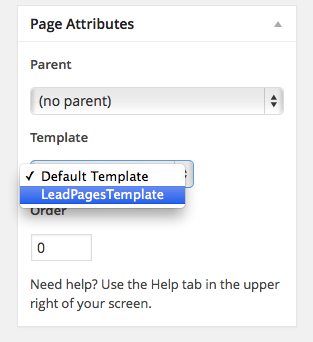
Leave the content in the page blank and publish the page.
Now if you view the live version of the page you should see a blank page with “Custom Page Template outside the WordPress Theme” on it. Click here to see an example.
If you just see the standard theme layout then your theme likely does not have the proper support for custom page templates.
Add LeadPages HTML Export Code
Time to add our LeadPages landing page into our custom page.
Follow the LeadPages steps for exporting the HTML of your landing page
Open that file up in a text editor
Copy + Paste its contents into page-custom-template.php so now our page should look something like this:
Save the page template file and reload it the live version in our browser and we should see our LeadPage. Click here to see an example.
Customizing the LeadPage
Now that our LeadPage is loading in our custom page template we can add any amount of CSS or Javascript into the source of our template file (page-custom-template.php) to hide or customize whatever elements we want.
Here’s the CSS for removing the video element in the above example:
I added the style tag just before closing </head> tag (Lines 9-11). Here’s our original page and here’s the new page with changes. Notice the blue video element is now hidden.
Summary
We now have full style control over our LeadPage, are still able to use LeadPages’ editor to make any changes we want and maintain all the tracking and conversion data that we’ve come to love about LeadPages.
In a future post, I’ll show how to integrate this into the OptimizePress theme which is a little trickier due to its complexity.
If you run into any issues leave a comment below and I’ll do my best to help.
The LeadPages editor works well for editing all the main elements but sometimes you want to style something a bit different or hide a specific element. This is where their editor falls short.
Thankfully, by using their HTML export option with WordPress Page Templates, we can make our own edits with custom CSS and Javascript.
Set up a WordPress Page Template
First we need to set up a WordPress Page Template. This creates a custom page layout outside the default theme you’re using.
Create a new file in your favourite text editor
Add the following to the file:
<?php /* Template Name: Test Template */ ?>
Custom Page Template outside the WordPress Theme
Save the file as “page-custom-template.php”
Drop the file into the root level of your WP theme (/wp-content/themes/THEME_NAME) where “THEME_NAME” is the name of the theme you’re using.
Create a new page in WordPress
Give it a default title (doesn’t matter)
In the right sidebar in “Page Attributes” under Template, select the template we created.
Leave the content in the page blank and publish the page.
Now if you view the live version of the page you should see a blank page with “Custom Page Template outside the WordPress Theme” on it. Click here to see an example.
If you just see the standard theme layout then your theme likely does not have the proper support for custom page templates.
Add LeadPages HTML Export Code
Time to add our LeadPages landing page into our custom page.
Follow the LeadPages steps for exporting the HTML of your landing page
Open that file up in a text editor
Copy + Paste its contents into page-custom-template.php so now our page should look something like this:
<?php /* Template Name: LeadPagesTemplate */ ?>
<!DOCTYPE html>
<!--  This beautiful and lightning fast landing page was proudly created with LeadPages ( see: https://www.LeadPages.net ) and hosted on the LeadPages lead generation platform. -->

<html>
    <head>
     <script type="text/javascript" src="https://my.leadpages.net/template/load-LEADPAGES-HASH-HERE.js"></script>
  <meta name="leadpages-meta-id" content="LEADPAGES-ACCOUNT-ID-HASH-HERE" /><meta name="leadpages-served-by" content="html" /></head>
    <body></body>
</html>        <!--  This beautiful and lightning fast landing page was proudly created with LeadPages ( see: https://www.LeadPages.net ) and hosted on the LeadPages lead generation platform. -->
Save the page template file and reload it the live version in our browser and we should see our LeadPage. Click here to see an example.
Customizing the LeadPage
Now that our LeadPage is loading in our custom page template we can add any amount of CSS or Javascript into the source of our template file (page-custom-template.php) to hide or customize whatever elements we want.
Here’s the CSS for removing the video element in the above example:
<?php /* Template Name: LeadPagesTemplate Changes */ ?>
<!DOCTYPE html>
<!--  This beautiful and lightning fast landing page was proudly created with LeadPages ( see: https://www.LeadPages.net ) and hosted on the LeadPages lead generation platform. -->

<html>
    <head>
     <script type="text/javascript" src="https://my.leadpages.net/template/load-LEADPAGES-HASH-HERE.js"></script>
  <meta name="leadpages-meta-id" content="LEADPAGES-ACCOUNT-ID-HASH-HERE" /><meta name="leadpages-served-by" content="html" />

  <style>
    .main-page .header .header-center .video { display: none; }
  </style>
  </head>
    <body></body>
</html>        <!--  This beautiful and lightning fast landing page was proudly created with LeadPages ( see: https://www.LeadPages.net ) and hosted on the LeadPages lead generation platform. -->
I added the style tag just before closing </head> tag (Lines 9-11). Here’s our original page and here’s the new page with changes. Notice the blue video element is now hidden.
Summary
We now have full style control over our LeadPage, are still able to use LeadPages’ editor to make any changes we want and maintain all the tracking and conversion data that we’ve come to love about LeadPages.
In a future post, I’ll show how to integrate this into the OptimizePress theme which is a little trickier due to its complexity.
If you run into any issues leave a comment below and I’ll do my best to help.
Теги:
LeadPages, template, custom, Template, landing, leadpages, https, theme, content, style, created, WordPress, LEADPAGES, lightning, platform, hosted, generation, beautiful, proudly, script, LeadPage, should, example, their, video, outside, using, editor, element, Create, default, editor
, version, header, blank
Комментарии:
Нету комментариев для вывода...